Help · Pro features
Disguise the app name and icon
Vaultessa can appear on your home screen under another name and icon, so it doesn't draw attention. The disguised names are part of Vaultessa Pro.
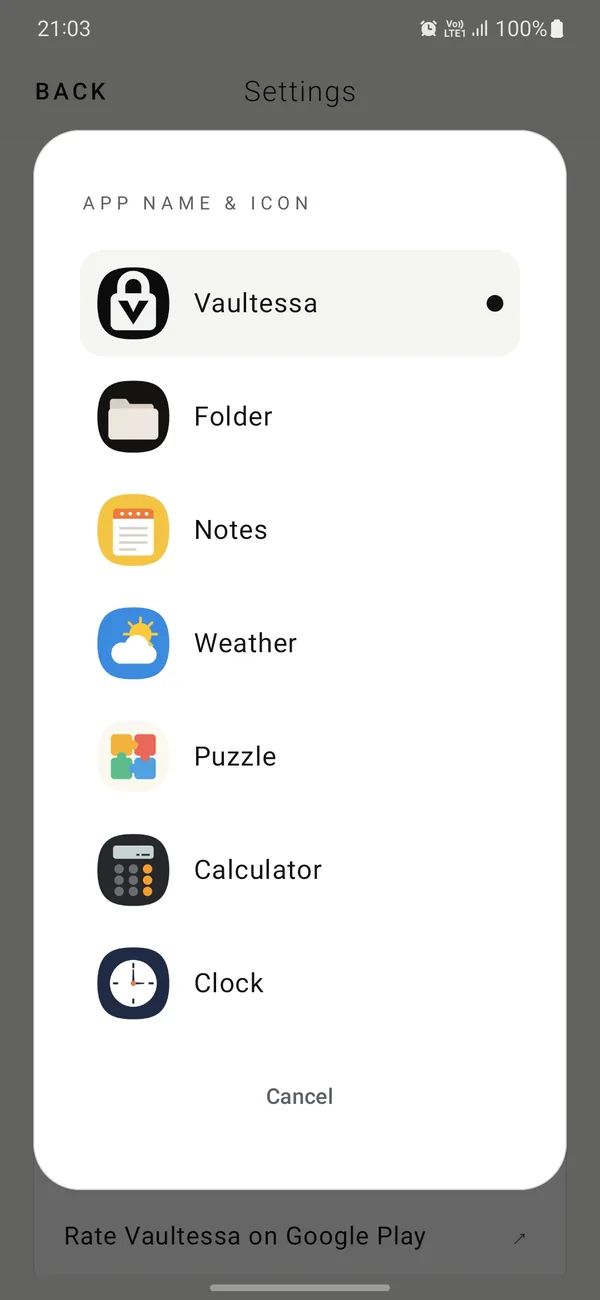
Step by step
- Open Settings
Open a folder, then Menu › Settings.
- Tap App name & icon
It's under APP ICON.
- Pick one
Choose Vaultessa, Folder, Notes, Weather, Puzzle, Calculator or Clock. The home screen can take a moment to update, and on some phones you need to add the icon to the home screen again.
The name and icon in your app drawer and home screen change. Once opened, the app still shows Vaultessa's start screen, and Android's app list and Google Play still list it as Vaultessa. It's camouflage against a quick glance, not invisibility.
A disguise you already chose keeps working.
Need more help?
See all help topics, or write to aa.appcraft.dev@gmail.com. We can't open folders or recover codes, but we're glad to explain anything.